Ghislaine Maxwell won’t be getting out of prison any time soon — at least not if the US Senate has anything to say about it.
On Wednesday, the Senate unanimously approved a bipartisan resolution declaring that Maxwell should not receive a presidential pardon or any other form of executive clemency.
The non-binding measure passed Wednesday without opposition, reflecting rare bipartisan agreement as the Jeffrey Epstein case receives another round of renewed attention.
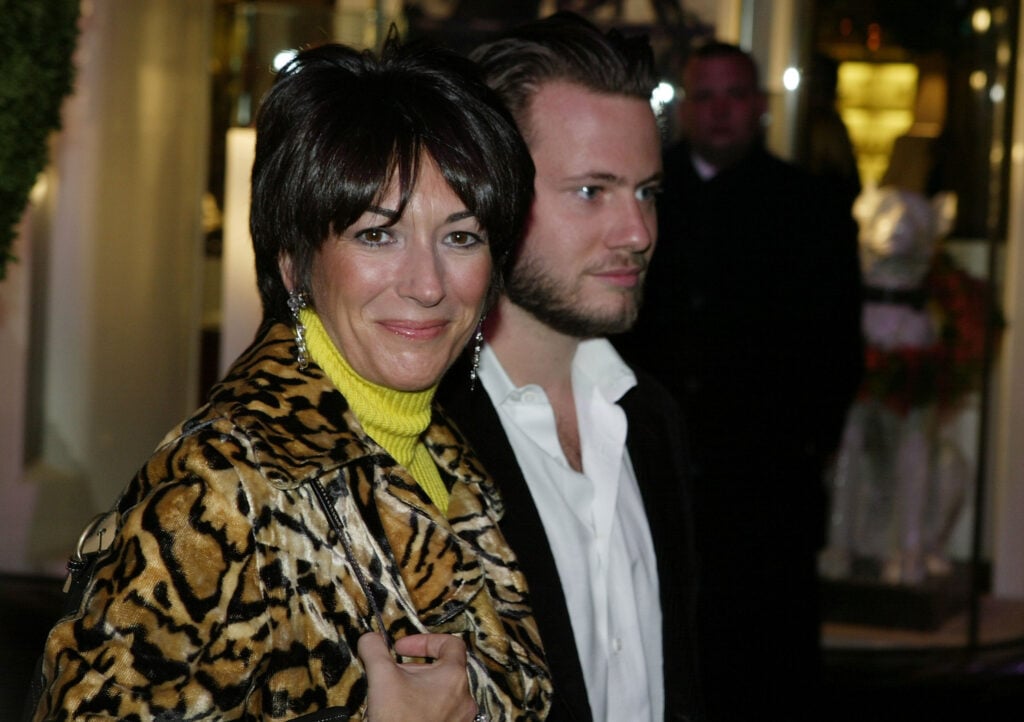
Socialite Ghislane Maxwell with an unidentified male companion attends the Opening of the Asprey Flagship Store on 5th Avenue December 8, 2003 in New York City. (Photo by Mark Mainz/Getty Images)
Maxwell is serving a 20-year federal prison sentence after being convicted in 2021 on sex trafficking-related charges for recruiting and grooming underage girls for Epstein, the infamous financier and convicted sex who took his own life in 2019.
When recently asked about that possibility, Trump declined to rule it out, saying he had not given the matter much thought.
The resolution was introduced by Senator Jacky Rosen, who argued that Maxwell’s crimes make her undeserving of any reduction in her sentence.
Speaking on the Senate floor, Rosen said survivors of Epstein’s abuse deserve justice rather than uncertainty over whether Maxwell could receive special treatment.
She also noted that the vote came as the Senate considered Attorney General nominee Todd Blanche, who has publicly stated that he would not recommend a pardon for Maxwell.
The Senate’s action follows months of renewed public and political interest in the Epstein investigation and those connected to it.
Earlier this year, Maxwell appeared before the House Oversight Committee but repeatedly invoked her Fifth Amendment right against self-incrimination rather than answer lawmakers’ questions.
While the resolution sends a clear political message, it does not limit the president’s constitutional authority to issue pardons or commute federal sentences. Executive clemency remains solely within the president’s power.
Still, lawmakers from both parties made their position unmistakably clear by approving the resolution unanimously.
Whether the vote has any practical impact on Maxwell’s future remains uncertain.
But the Senate’s message was straightforward, and it’s clear that members of both parties believe Maxwell should serve the remainder of her sentence without receiving a presidential pardon or other form of executive clemency.
We will have further updates on this developing story as new information becomes available.
Raising Cane’s is keeping Megan Moroney’s Cloud 9 era soaring with the launch of two exclusive, limited-edition collectors’ cups.
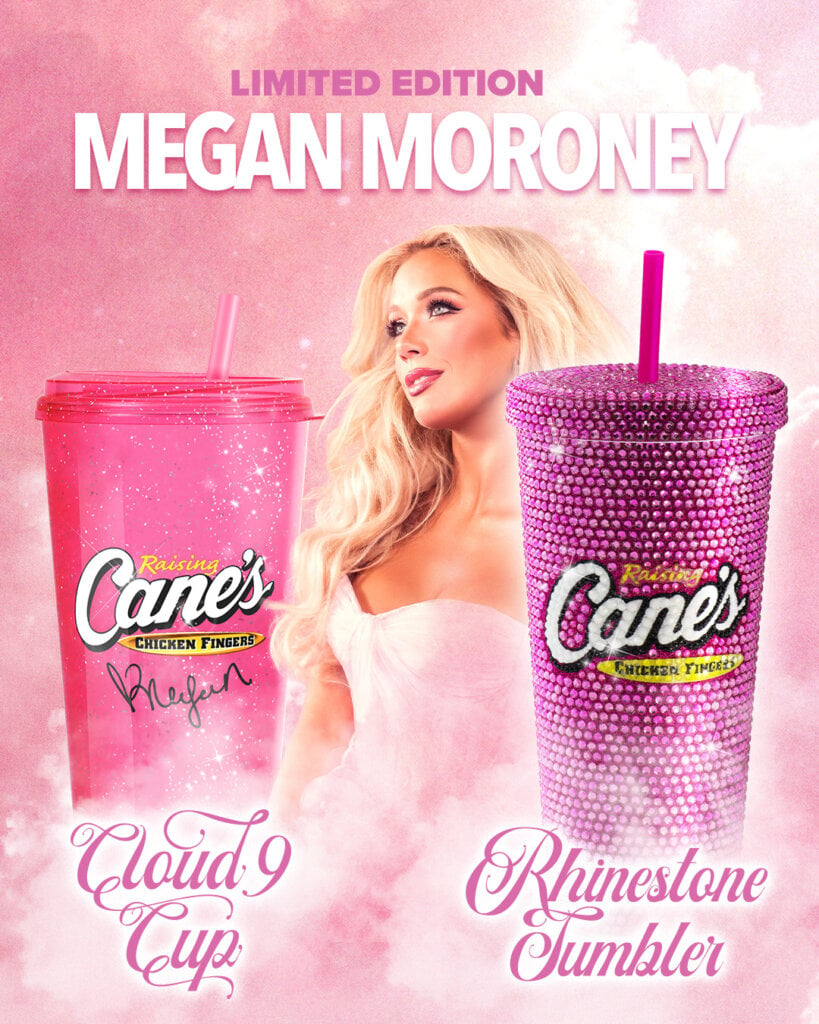
As Moroney’s sold-out Cloud 9 Tour continues across the country, Raising Cane’s has unveiled two collectible drinkware items inspired by the country star’s signature pink aesthetic: the Megan Moroney Rhinestone Tumbler and the “Cloud 9” Souvenir Cup.
How To Get Megan Moroney’s Raising Cane’s Collectors’ Cups
Beginning today, fans can purchase the Rhinestone tumbler online or at participating Raising Cane’s restaurants, while supplies last. Plus, $2 from every Rhinestone Tumbler sold will benefit The Megan Moroney Foundation. The glittery “Cloud 9” Souvenir Cup is available exclusively in-store and can be added to any Combo or 32 oz. drink for a small upcharge at participating Raising Cane’s locations nationwide.
Megan Moroney x Raising Cane’s
Inside The Limited-Edition Collection
Megan Moroney Rhinestone Tumbler: This eye-catching 24 oz. tumbler is decked out in sparkling rhinestones and features the iconic Cane’s logo. It’s available in-Restaurant and online at RaisingCanesGear.com for $19.99, while supplies last. Plus, $2 from every tumbler sold during the campaign will benefit The Megan Moroney Foundation, which promotes kindness while raising awareness for bullying prevention and mental health.
“Cloud 9” Souvenir Cup: Inspired by Megan’s signature pink aesthetic, this collectible cup features a glittery pink finish, a matching pink lid and straw, Megan’s signature, and a QR code that takes fans directly to her Cloud 9 album page. Fans can add the cup to any Combo or 32 oz. drink for a small upcharge, while supplies last.
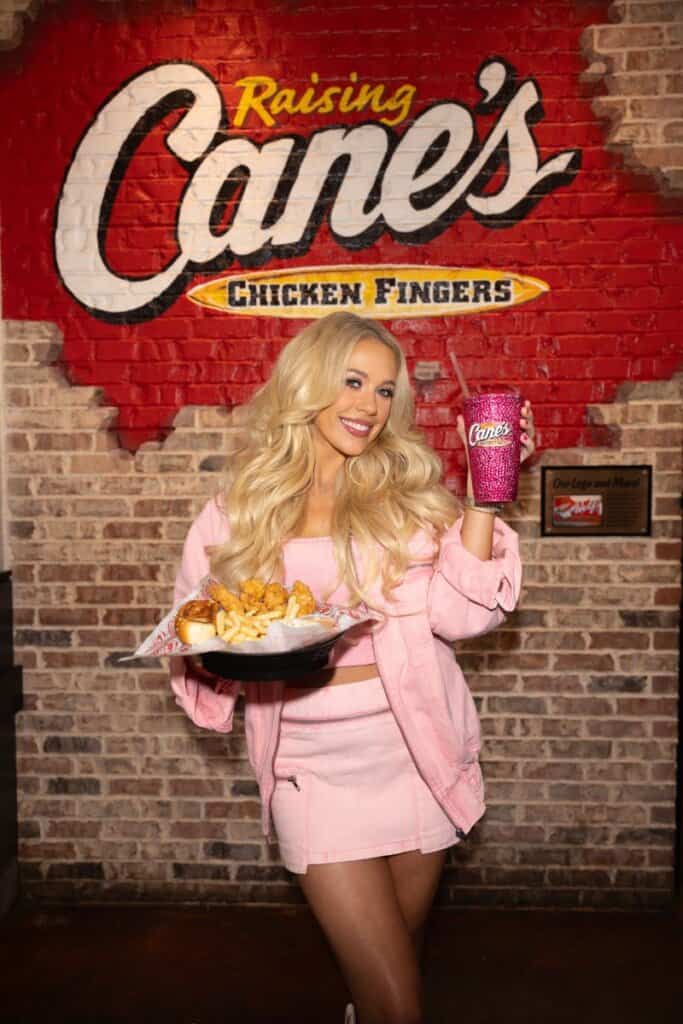
Megan Moroney; Photo Courtesy of Raising Cane’s
The Story Behind The Rhinestone Tumbler
The idea for the Megan Moroney Rhinestone Tumbler dates back to the beginning of her partnership with Raising Cane’s last fall. The brand originally designed the sparkling tumbler exclusively for Moroney to use during her surprise appearance at the Raising Cane’s restaurant in Athens, Georgia, where she worked a “shift” alongside the crew and greeted fans to celebrate the launch of the collaboration.
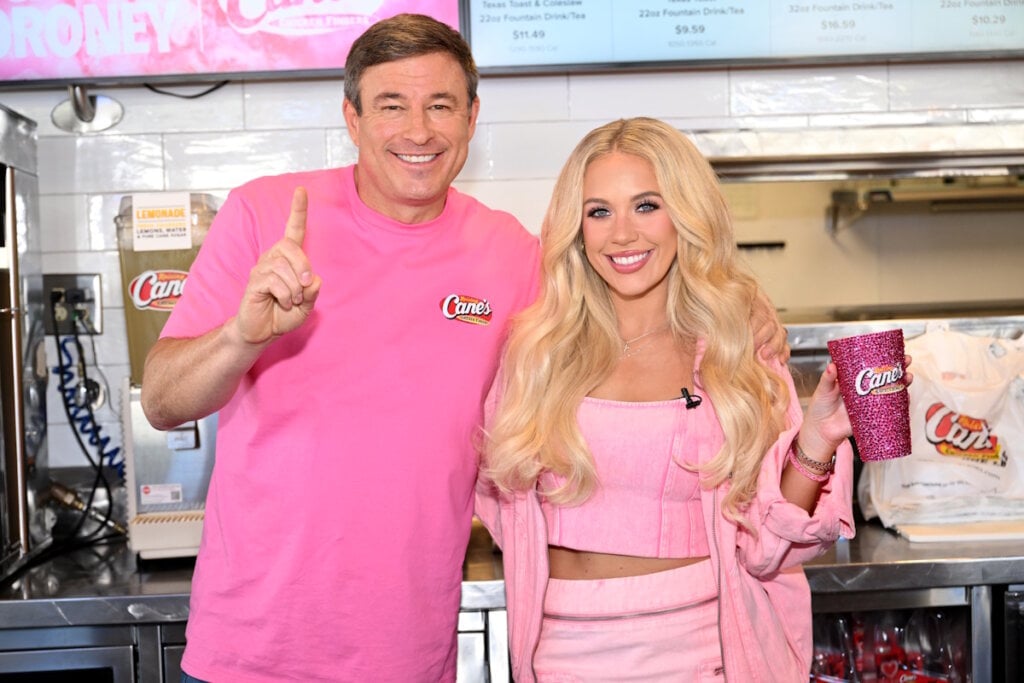
Todd Graves, CEO of Raising Cane’s Chicken Fingers, and country music superstar Megan Moroney attend a “Pop Up” at Raising Cane’s Athens on November 14, 2025 in Athens, Georgia; Photo by Derek White/Getty Images for Raising Cane’s
Since then, the custom tumbler has become a recognizable part of Moroney’s partnership with Raising Cane’s, making appearances throughout the campaign, including national advertising efforts and a surprise Cloud 9 album listening party in New York City. Now, with Moroney out on her biggest headlining tour to date, Raising Cane’s founder and owner Todd Graves is bringing the once one-of-a-kind design to fans as a limited-edition collector’s tumbler.
Russell Dickerson and his wife, Kailey, are growing their family once again. The couple proudly announced they are expecting their third child together, sharing the exciting news with fans in a sweet social media post on Wednesday (July 30).
The announcement came in the form of a beachside video soundtracked by “Famous Back Home,” Dickerson’s song that celebrates the importance of family and feeling the most pride about the life he’s built at home. The montage opens with Kailey holding her growing baby bump as she watches the waves roll in before showing the couple soaking up quality time with their two sons, Remington, 5, and Radford, 3.
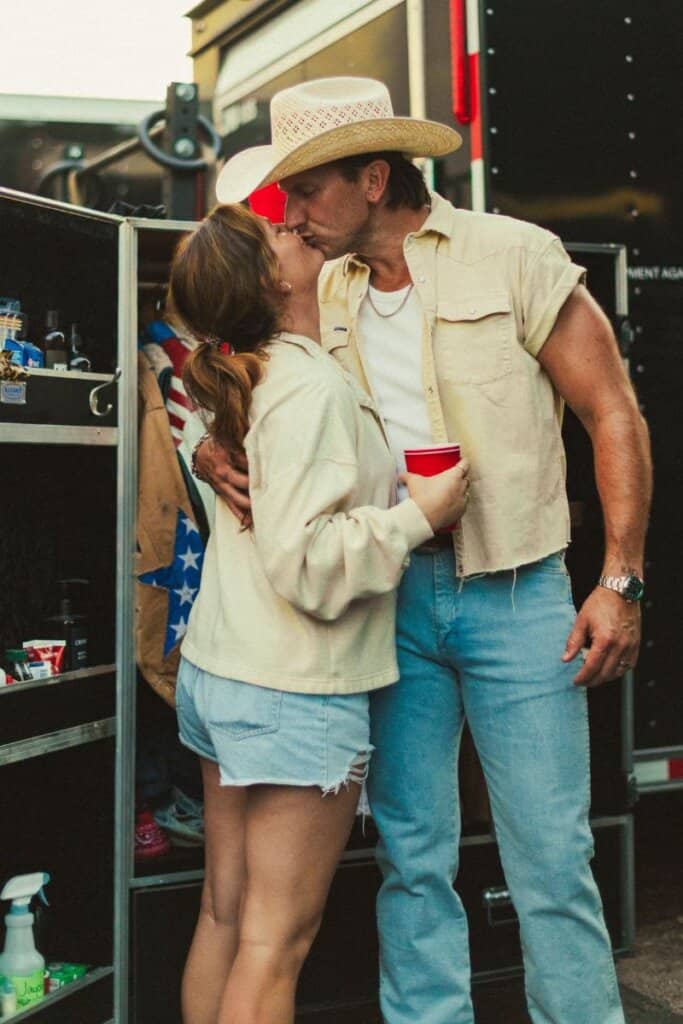
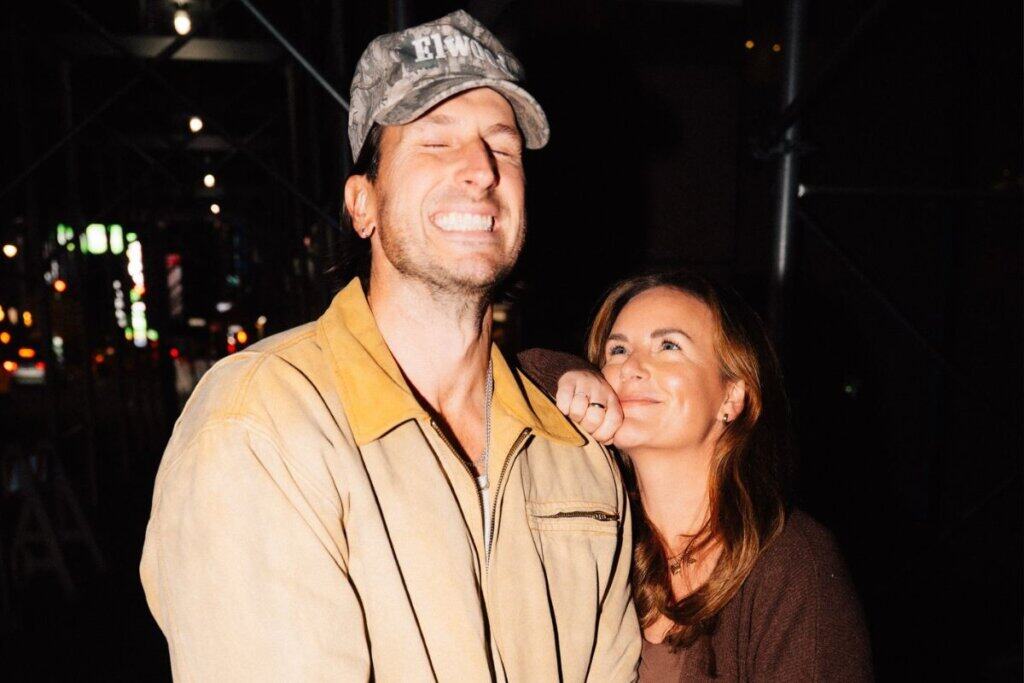
Photos Courtesy of Russell Dickerson, Kailey Dickerson
Dickerson’s voice can be heard delivering the last chorus of the tune, which documents the emotions of finding out some “good news” after taking a Walgreens test and seeing two lines appear.
“Hey baby, I got some good news/ Took a Walgreens test and it’s true”/ Little lines, tears in her eyes, “You’re the best dad that I know,” it’s/ Paper planes and tire swings spinnin’/ A slow dance alone in the kitchen/ One more face in that hallway Hall of Fame framed in gold/ I’m livin’ the dream, yeah, I’m a household name/ I got everything here at Kevin Court 108/ Yeah, I’m famous back home.”
Throughout the video, the family exudes so much happiness as they share hugs, laughs, and memorable moments on the beach as they prepare to become a family of five.
The couple captioned the post, “One more face in that hallway hall of fame. ✨🖼️✨”
They received a tremendous amount of love in the comment section from fans as well as fellow country artists and their wives.
Carly Pearce wrote, “AWWWWWWWWWWWWW!!!!!!!!!”
Emily Ann Roberts gushed, “Omg!!!! I’m so thrilled for yall!!!🤍”
Jason Aldean’s wife Brittany said “Eeeeeeeeek❣️❣️❣️❣️❣️❣️” while Luke Combs’ other half commented “YAYAYYY!!!”
Russell and Kailey first met in 2008 while attending Belmont University in Nashville and then tied the knot in 2013. They welcomed their first son Remington Remington Edward Dickerson in September 10, 2020 followed by their second son, Radford Arthur Dickerson, who arrived on October 1, 2023.
Russell Dickerson, Kailey Dickerson; Photo Courtesy of Facebook
In between those joyful moments Kailey opened up about suffering a miscarriage in 2022, sharing a gut-wrenching message about the pain she endured after losing a child at eight weeks.
“It felt like drowning and trying to swim towards sun to find the surface,” she shared. “I didn’t know if I’d ever share this, but something about going into this next year, I needed to leave this news in 2022. The loss; however, is something that will always be written into our story. I know I’ll share more about it when I’m ready, but for now, and for the last several months, I’m holding these two extra close…,” she wrote at the time.
The couple has found so much light in their lives since that time, and with another baby on the way, they have so much to celebrate as a family.
The news arrives just a few months after Russell Dickerson wrapped up his headlining RUSSELLMANIA Tour in May. His schedule has remained packed throughout the summer with performances at fairs and festivals and he will continue with various shows through October.
That’s a little awkward, since this has left her husband to man Live with Kelly and Mark without half of the eponymous hosting team.
Why is Kelly gone? Who is stepping in for her?
And when will she return?
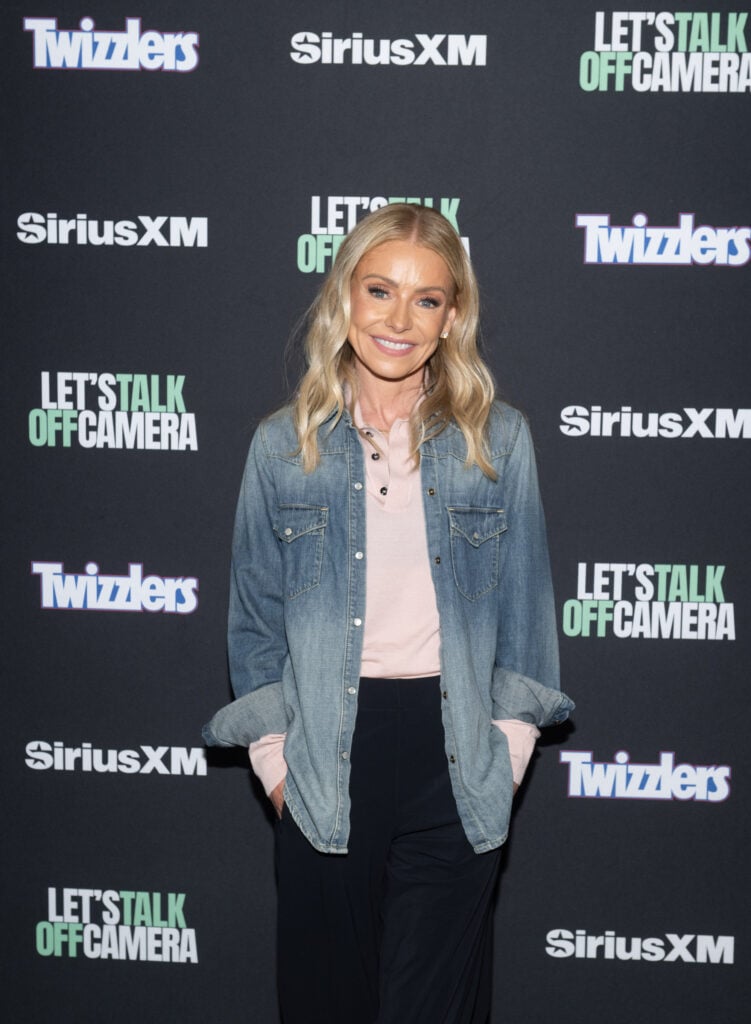
Kelly Ripa attends Let’s Talk Off Camera with Kelly Ripa on July 07, 2026. (Photo Credit: Noam Galai/Getty Images for SiriusXM)
Where is she?
On Thursday, July 30, Pamela Adlon sat with Mark Consuelos as his guest co-host on Live With Kelly and Mark.
Adlon is only one guest host in a rotation.
Meanwhile, Kelly has been absent from the show all week.
Hunky husband Mark has provided periodic updates on her recovery.
Kelly, meanwhile, has only appeared on social media — mostly in reposted content.
Kelly’s absence is due to her gum graft surgery.
Mark explained to the audience that, while she recovers, she simply cannot appear on the show.
There are some surgeries that might allow someone to participate in a show remotely, if only to reassure fans.
But gum graft surgery, which addresses receding gumlines and helps to stave off tooth decay, is not one such procedure.
We hope that Kelly is recovering well and is as comfortable as humanly possible, under the circumstances.
When will she return?
Adlon appeared as a guest last week.
Thursday, she was a guest host on the program.
If you are not familiar Adlon is an actor, writier, and producer.
If you don’t know Adlon for FX’s Better Things, you’ve still likely heard the actor’s voice as Bobby on King of the Hill.
(Seriously, Better Things is pretty well reviewed. FX’s programming tends to be top-notch, as it’s one of the few remaining networks that seems to care more about television than about business numbers.)
Just weeks before he was set to head overseas, Bailey Zimmerman has announced the cancellation of the UK and European leg of his Different Night Same Rodeo Tour.
The country act was originally set to bring his 2026 headline run to the UK on August 27 and continue with stops across Ireland, Netherlands, Germany and Sweden before wrapping up in Oslo, NO on September 12.
Photo Courtesy of Bailey Zimmerman
Zimmerman shared the unfortunate news with fans via social media on Thursday (July 30), revealing that he made the difficult decision to cancel the upcoming shows so he could remain focused on “important family matters.”
“To my fans, I wanted to let you all know personally that I unfortunately have to cancel my UK/Europe shows. This was not an easy decision, and it kills me to have to cancel because I know how excited everyone is… but right now I need to take this time to focus on important family matters,” Zimmerman explained.
He assured his fans that “everything is okay” but he feels that he needs to prioritize his loved ones at this time.
In addition to canceling the UK and European leg of the tour, the “Chevy Silverado” singer said he plans to finish his remaining North American dates through August before stepping away again to “focus on me, my family and new music.”
Zimmerman apologized to all his fans who are disappointed by this news, but thanked everyone who has shown him support during this time.
“Once again I’m so sorry to everybody that has waited so long… I hope y’all can understand that my family has to come first. Thank you for having my back on this crazy ride we call life,” he added in conclusion.
Despite the unfortunate news, fans still flooded his comment section expressing understanding for his decision to support his family.
“Love to see the priorities ❤️ Family first xx”
“Take your time BZ!! Family over anything ❤️❤️”
“we love you bro. family comes first always❤️”
“🥹 family first BEFORE your job ALWAYS🥹”
“Take time Bailey!!! We love you❤️”
According to the country star’s tour schedule, he has four remaining North American Dates before taking a break from the road. Zimmerman is next set to perform in Bethlehem, PA on August 6 before heading to the Wisconsin State Fair on August 8, the Missouri State Fair on August 13 and the Illinois State Fair on August 14.
Before you dive headfirst into all the big and small changes and pick your favorites, make sure to read these preliminary thoughts about this post and how to use it. If you have any questions, leave a comment or email me at pauli@gutenbergtimes.com.
A huge “Thank you” to Anne McCarthy, Justin Tadlock, Isabel Brison, Adam Silverstein, Ramon Dodd, Andrew Serong, Hans-Gerd Gerhards, Marin Atanasov, Krupa Nanda, Aaron Robershaw, Ben Dwyer, Brent MacKinnon, Ashar Fuadi, and a lot more. It still takes a village. Also huge respect to the whole release squad on getting WordPress 7.1 over the finish line.
Estimated reading time
35–53 minutes
at
8,291 words
Table of Contents
Changelog
Any changes are cataloged here as the release goes on.
Try not to just copy and paste what’s in this post since it’s going to be shared with plenty of folks. Use this as inspiration for your own stuff and to get the best info about this release. If you do copy and paste, just remember that others might do the same, and it could lead to some awkward moments with duplicate content floating around online.
Each item has been tagged using best guesses with different high-level labels so that you can more readily see at a glance who is likely to be most impacted. Each item has a high-level description, visuals (if relevant), and key resources if you would like to learn more.
Overview
WordPress 7.1 rounds out the block editor’s styling controls and makes working with media noticeably smoother. Long-requested features let you style how blocks look across three screen sizes and in interactive states like hover and focus — all without writing custom CSS. The admin experience becomes more personal, too, following you with your own color scheme and toolbar across every screen.
Handling images gets a considerable upgrade, too. The new media editor modal brings free-form cropping, rotation, and metadata editing into one workflow, and client-side media processing makes uploads faster and more resilient, with broader format support and better-optimized files.
The new Playlist and Tabs blocks enrich the layout options available out of the box and make for more creative information presentation. In the same realm fall the expanded Icon API with custom icon collections, dynamic galleries, and background gradients for more blocks.
The unification of WP Admin and the block editors progresses as well: the editors now respect your admin color scheme, and the admin bar stays with you on every screen — including the editors and the front end. A new “On This Day” Widget connects you to your site’s history.
While real-time collaboration has been punted to a future WordPress version, the asynchronous collaboration in Notes took real steps forward with inline notes on partial text selections, @mentions, rich text formatting, and multiple notes per block.
Beyond the headliners, core blocks receive many quality-of-life improvements and bug fixes to make editing content in WordPress streamlined, consistent, and fast — and developers get an expanding set of APIs to build on.
This release consists of features from the Gutenberg plugin version 22.7 – 23.6. Here are the release posts of those plugin releases: 22.7 | 22.8 | 22.9 | 23.0 | 23.1 | 23.2 | 23.3 | 23.4 | 23.5 | 23.6 Later Gutenberg releases contain bug fixes, backported to WordPress 7.1. release branches.
To make this document easier to navigate based on specific audiences, the following tags are used liberally:
[end user]: end user focus.
[theme builder]: block or classic theme author.
[plugin author]: plugin author, whether block or otherwise.
[developer]: catch-all term for more technical folks.
[site admin]: this includes a “builder” type.
[enterprise]: specific items that would be of interest to or particularly impact enterprise-level folks
[all]: broad impact to every kind of WordPress user.
How can you use these? Use your browser’s Find capability and search for the string including the brackets. Then use the arrows to navigate through the post from one result to the next.
Short video on how to use the tags to navigate the post.
Priority Items for WordPress 7.1
WordPress 7.1 introduces significant enhancements to block-based design and editing. These priority features focus on responsive controls, interactive states, media management, and modernized Admin bar navigation.
Responsive styles for blocks
[theme builders] [site admin][end user]
Probably the most requested improvement of the block editor: after years of pushing intrinsic design for fonts and spacing, WordPress 7.1 makes responsive design a built-in, first-class part of the editing experience. The feature builds on earlier steps in this direction — the ability to show or hide blocks by screen size and the Navigation block’s customizable mobile overlay — and extends the idea to styling itself.
The feature is available across all block editors for Posts, Pages, Templates, Patterns,template parts and Navigation. Responsive styling follows a desktop-first model, letting styles cascade to smaller screens until you customize them for specific devices.
Viewport-specific values are currently limited to block sidebar settings (like typography, spacing, and colors). The controls work in Global Styles (affecting all instances of a block) and on individual block instances, across all block editors — Posts, Pages, Templates, Patterns, template parts, and Navigation.
Any controls from the toolbar that can’t be set by viewport will be hidden when a viewport state is enabled. Among the most significant controls: viewport-level aspect ratio presets for Image, Featured Image, and Cover blocks, so each can be optimized per device (#78543). Alongside this work, the Layout controls moved from the Settings tab to the Styles tab, keeping all styling decisions together.
Community feedback from the Call for Testing made sure this feature ships with an off switch via a new responsiveEditingEnabled editor setting: turned off, both the Responsive styles option in the View menu and the viewport selector in Global Styles disappear. It gates the editing interface only. Responsive styles already saved keep rendering as before. (#80814). See code examples are in the responsive styles dev note.
Follow the Call for Testing: Responsive Styling to learn how to invoke the feature and what to look out for, and find the technical details in the Dev Note: Responsive block styles and configurable viewports in WordPress 7.1.
Themes can now define custom breakpoints in theme.json, so both responsive styling and per-viewport block visibility work from your design system’s breakpoints instead of WordPress’s defaults. For theme developers and designers, this provides fine-grained, device-agnostic control over responsive behavior. (79104).
You can now style interactive pseudo-states (:hover:, :focus: or :active:) for two blocks: Button and Navigation Link. The styling can be applied globally and per-instance without writing any CSS. For example, Users can change a button’s color on hover directly in the editor. (76491)
The underlying mechanism allows for the styling of the current menu item in a navigation block via theme.json (75736).
The new media editor modal replaces the inline cropping tool, accessed via the familiar Crop button, and brings together free-form and aspect-ratio cropping, flip, fine-grained rotation with snap guides, and metadata editing in one unified workflow. (78653, 78935, 78792)
This considerably improves the editing experience in WordPress Block editor. The goal was to eliminate the need for external tools for basic image editing. You can now exercise faster, more precise control over your images—fine-tuning framing, fixing orientation, or mirroring an image to better fit your layout in just a few clicks, all without breaking your editing flow.
For the Cover Block, this new media editor modal is hooked up to the Crop background image button. The option appears whenever the Cover block uses an editable image, and the block automatically recalculates its overlay color and contrast after an edit, so text stays readable even if the crop removes the image’s brightest or darkest areas (79258 )
When you upload an image in the block editor, your browser — not your server — will now handle the creation of all sub-sized images using a WebAssembly (WASM) version of libvips (wasm-vips), a high-performance image processing library. The result stored on your server is improved over what server-side processing produced until today: smaller files generated directly on your device. Server-side image processing CPU usage could decline by more than 80% on capable devices (79188)
The update also comes with broader modern image format support that includes HEIC (the default format for iPhone photos), JPEGS with HDR gain maps (used by UltraHDR and Adaptive HDR), AVIF and WebP support built in. A great performance improvement is the GIF-to-video conversion feature for lighter, more efficient files that are faster to load on the front-end. This feature is opt-in right now. Uploads are also more resilient, with a progress indicator and automatic retries if your data connectivity drops off (76765, 79307).
For content creators uploading media, this update means better support for HDR images, faster, more reliable uploads, broader format support, and better-optimized files without manual intervention.
Plugin developers should note that some server-side hooks, including `wp_generate_attachment_metadata`, `image_resize_dimensions`, and `wp_handle_upload` may not fire as before. The team is working on documentation and mitigation strategies. (74333)
WordPress 7.0 shipped a built-in set of SVG icons for the block editor and the Icon block. With WordPress 7.1, this grows into a proper, public API: plugins and themes can register their own icons, group them into collections, render them on the server, and read them over the REST API.
For developers, the pieces come together on the PHP side: register a collection with wp_register_icon_collection(), add icons with wp_register_icon() — from an inline SVG string or an .svg file — and print any registered icon with wp_get_icon(), including size, CSS class, and an accessible label. Icon names get strict validation, the registry’s register method is now public, and REST API endpoints expose collections and icons to your own code. A dev note with full code examples is on its way to the Make Core blog.
One breaking change to flag: all 330 icons in @wordpress/icons v15 now declare fill="currentColor", so icons inherit the surrounding text color by default. If you’ve been tinting icons with the CSS fill property, switch to color — it’s more reliable, since an icon may use fill, stroke, or both internally. If you register your own icons, add fill=”currentColor” to their <svg> element to get the same behavior.
With WordPress 7.1, the WordPress admin bar which sits at the top of your site’s front end and other admin pages is now displayed when using block editor by default. It stays hidden when Fullscreen mode and Distraction-free mode are both turned on.
Until now, entering the editor in its default fullscreen mode meant the admin bar disappeared, cutting you off from the rest of wp-admin. Since the admin bar now provides site context, the update also replaces the top-left W/site icon in the site editor with an explicit back button, making the navigation control more obvious (79197).
With this update also comes a design refresh:
your site icon replaces the home icon,
the profile avatar becomes circular, and
the command palette keyboard shortcut moves into the Admin bar to remove visual clutter and resolve shortcut conflicts. (79060)
This keeps the familiar navigation with you on all screens again.
This release expands the block library with versatile new tools. These additions provide content creators with improved ways to display interactive media and organize information.
Playlist block
The new Playlist block lets you create audio playlists with waveform visualization, making it easy to showcase multiple tracks or podcast episodes in a single interactive player. Visitors can browse and play through your audio content without leaving the page. For content creators this provides a rich, modern listening experience built right into WordPress to highlight podcast episodes, track of music or talks.
Each track comes with its metadata: artwork, artist name, track number, and track length. The tracklist itself is configurable — you can set the play order and toggle artwork, artist names, track numbers, and track length individually to suit the design of your page.
This is the first version and contributors are working on improvements for the next WordPress version, too looking to add more waveform styles, shuffle and skip buttons, a hover overlay for more intuitive track scrubbing, as well as performance improvements.
The new Tabs block organizes content into separate tabbed panels that visitors click through to navigate. It’s a design pattern that presents information compactly without overwhelming readers with a wall of text. It’s a common layout for FAQs, product features, or any content where you want to show options side-by-side. For editors, it’s a familiar, flexible layout pattern now available natively in WordPress.
The block family consists of a Tab List for the navigation and Tab Panels for the content. Each panel accepts any blocks you like, and the tab buttons come with their own color, typography, border, and spacing controls, so the navigation can be styled to match your theme. Using the toolbar buttons you can reorder the tabs quickly.
Core blocks receive numerous quality-of-life improvements in 7.1. These updates refine existing editing workflows, simplify media handling, and provide deeper customization for layouts and design.
Block transforms: preview first, convert faster
[end user][site admin]
Switching a block’s look or type is now much easier to evaluate before you commit. When you open the block switcher in the toolbar, the style options a theme provides — say, a Button’s “Outline” style — show live previews on hover, so you see exactly how your block will look with the style applied. (75889) The same previews in the inspector’s Styles panel now match the toolbar presentation, so it no longer matters where you make the switch. (75989) A small polish fix also centers the Navigation block’s preview in its preview pane. (75741)
Transforms got more capable, too: a block can now transform directly into a variation of another block. Instead of converting to a Group and then picking Row afterwards, the transform menu offers Row or Stack as direct targets — one step instead of two. (78713)
The same “one step instead of two” thinking extends to legacy content. Pasting or converting an shortcode now creates a proper Embed block instead of leaving raw shortcode text behind, so embeds from YouTube and other services display correctly right away (77937)— and if you change your mind, undo restores a paragraph with the URL rather than deleting it. (77551).
The Shortcode block joins in as well: when its content matches a registered shortcode, it now offers block-specific transforms to convert it into the equivalent block. (77944)
For anyone maintaining a site with years of shortcode-based posts, that removes a tedious cleanup step on the way to block-based editing.
Combine gradient and image backgrounds
[end user][theme builder][site admin]
More blocks now support background gradients through the new background.gradient block support, which layers a gradient on top of a background image instead of one overwriting the other — a translucent color wash over a photo, for instance, without custom CSS.
Previously, gradients lived only in the Color panel, stored as a CSS background shorthand that clashed with any image on the block. The new support adds a Gradient control to the Background panel next to the existing Image control, and the style engine combines both into a single layered background-image value on individual blocks, in Global Styles, and via theme.json. A follow-up allows modern color functions in standalone gradients, and the text and background color controls moved to the Typography and Background panels to match.
WordPress 7.1 ships with six blocks supporting the new gradients: Group, Verse, Accordion, Pullquote, Post Content, and Quote. More will follow, with a long-term plan to migrate the older color.gradient to the new system across all blocks. There’s no built-in migration path in 7.1 yet.
For extenders, opting in follows the familiar block supports pattern. Custom blocks declare it in their block.json:
JSON
"supports":
	"background":
		"gradient": true
Themes control the setting via theme.json under settings.background.gradient (it’s also included in appearanceTools), and can define gradient values in styles — at the root, per block, or in style variations:
Besides gaining the new media editor modal for background images, the Cover block addresses a request from community feedback. When the block’s “Embed video from URL” feature shipped in WordPress 7.0, site builders asked for a way to curate or disable it. WordPress 7.1 adds a new allowedVideoProviders attribute to restrict which video providers are offered, or to remove the URL-embed option entirely by allowing none (#80092). Existing embeds keep working; only new URL input in the editor is restricted.
Gallery and the attached images workflow in the Media Library
[end user][site admin]
Images you upload while writing a post have always been “attached” to that post. This specifically true for older sites, pre-Block editor. Attached images where no accessible as an cluster and need to be added the block editor canvas one at a time. WordPress 7.1 finally puts that relationship to work in the editor, via an additional filter drop-down item Uploaded to this post in the Media Library Inserter modal. Photos and other media you’ve uploaded stay within reach for reuse instead of disappearing into the media library.
The Gallery block is the showcase: instead of hand-picking every image, a single Use attached images button populates a dynamic gallery from all media attached to the current post (#78796). For content creators, this makes assembling image galleries faster and more flexible. It also helps reorganize image on older posts. The Source panel provides options for sorting the images. This brings the block editor handling of Gallery’s up to par with some features of the
shortcode
To have entire freedom to control the Gallery block, the Detach feature comes in handy. A Detach button in the toolbar and in the sidebar’s Source panel, makes out a stand-alone Gallery without the dynamic connetion to the post’s image. Using it help user to edit/upate the gallery block.
Below video visualizes the connection between a list of image attached to a post from the Media Library and the gallery block with the new feature.
It’s a step back toward the simplicity of dropping photos into a post and having WordPress do the arranging. It’s the first visible piece of a larger effort around dynamic galleries and post-attached media, with dynamic queries by date and eventually categories or tags ahead.
Image Block: Mark as decorative toggle
[end user][site admin]
Screen readers announce every image to their users — but some images, like dividers and design flourishes, carry no information worth announcing. The Image block’s new “Mark as decorative” checkbox tells assistive technologies to skip such an image entirely on the front end, by rendering it with role=”none” in the published post. It now eliminates the question, did we forget an alt=text or was it a deliberate decision to leave the alt-text empty?
There is further processing to come with the checked box. Marking an image decorative clears its alt text and disables captions and links, since an image that links somewhere or explains something isn’t decorative by definition. Until now, the accessible route was knowing the empty-alt-text convention; the checkbox makes the intent explicit, machine-readable, and available to every content creator. (78064)
The Login/Logout block has an option to display a full login form instead of a simple link — but until now, that form’s submit button ignored your theme entirely, rendering with plain browser-default styles that stuck out next to every other button on the site. With a block theme active, the submit button now carries the standard button classes (wp-block-button__link and wp-element-button), so it automatically picks up the button styling your theme defines in theme.json — colors, border radius, and all — with no custom CSS required. The block follows the same approach the Comments form already uses, resolving a mismatch first reported back in 2023. (76746)
Navigation Block and Link Creation [theme builder][site admin][end user]
The Navigation block picks up several improvements that give site builders more freedom in what a menu can contain and where it can be edited. The Login/Logout block can now be nested inside submenus (#75497), handy for tucking account actions into a “My Account” dropdown instead of spending a top-level slot on them. New links can be created directly from the sidebar List View in the Site Editor (#75918), so building out a menu no longer requires clicking into each item on the canvas. And the Home Link block gains previously missing controls (#76672), bringing it up to par with its navigation siblings.
Search block Styling
[theme builder][site admin][end user]
A styling gap is closed in the release for the Search block: color settings now apply to the search input field even when the search button is disabled (77219), so your search boxes match your design system regardless of which display options you choose.
The block also embraces modern HTML: it can now render inside the native <search> landmark element, which carries search semantics for browsers and assistive technologies without the manual role=”search” attribute. Because dropping that attribute could break existing theme CSS, the feature is opt-in — per block via a new HTML element selector in the Advanced panel, or site-wide with add_theme_support( ‘search-element’ ) (#78485). Default output is unchanged, with a path to making the modern markup the default in a future release.(78485)
Query block
[theme builder][site admin][end user]
The Query block received an additional filter to control the list of blocks: You can now exclude the current post from a list of posts. This is useful when you want to add a list of posts with related posts. (64916).
General quality of life improvements.
Pattern editing experience improvements
[theme builder][site admin][developer]
WordPress 7.0 shifted pattern editing to focus on content changes rather than exposing every tool, treating patterns more like single blocks. In 7.1, work focuses on UX refinements based on feedback, bug fixes, and general maintenance. For users inserting and customizing patterns, this means a more polished, predictable experience with fewer rough edges.
Pattern Editing and Block Fields: Highlight selected block (74841)
Pattern editing: show root block identity when editing pattern sections #79417
Block Width and Layout Controls
[theme builder][site admin][developer]
Refines spacing and layout tools to be more intuitive. The Columns block no longer shows a confusing ‘Skip’ option in its layout picker, the Button block now uses the standard width control system, and spacing controls display in a more logical order when unlinked. These changes remove friction points that tripped up editors when building complex layouts.
Columns: Remove redundant Skip option from layout picker #78405
Re-order spacing side controls when unlinked #66317
Link Control and Preview Enhancements
[theme builder][site admin][developer]
When linking to pages or posts, the link picker now shows ‘Homepage’ instead of just ‘Page’ for your site’s front page, and uses the actual entity link title for previews. These small improvements make link creation feel smarter and help editors understand exactly what they’re linking to before publishing.
Use entity link title for link control preview #77155
Link Picker: Use Homepage badge instead of Page if Homepage #75929
Additional CSS Validation
[theme builder][site admin][developer][end user]
Additional CSS is now validated both on mount and via a new dimension validation endpoint for sideloaded styles. These checks prevent malformed or insecure CSS from breaking your site’s appearance or introducing security risks, giving you more confidence when adding custom styles.
Add dimension validation to sideload endpoint #74903
Block Editor Attribute Handling
[theme builder][developer]
The block editor now correctly targets the right block when copying direct insert block attributes, fixing edge cases where attributes would apply to the wrong block. This fix ensures that copy-paste and duplication workflows behave as expected.
Block Editor: Fix target block for copying direct insert block attributes #77877
A set of small fixes makes working with images more predictable. If an image points to a media library item that has since been deleted, the editor no longer treats it as a local attachment, preventing confusing errors. The crop button only appears when cropping is actually available for your user role and image type, so you’re never offered a tool that can’t work.
And the featured image field now shows placeholder text making clear at a glance what goes there.
Image block: Validate attachment ID exists before treating image as local #77178
Image/Site Logo: hide crop toolbar when editMediaEntity is unavailable #76626
Ensures the Post Template block’s fallback styles only apply when appropriate, preventing layout conflicts when custom minimum column widths are defined. This fix gives editors more predictable control over query loop layouts without unexpected style overrides.
Ensure Post Template fallback styles don’t apply when minimumColumnWidth is defined #77411
Post Title Block Enhancements
[site admin][end user]
The Title block gains a placeholder attribute, letting you show helpful text when no title has been entered yet. This small addition improves the editing experience for custom post types and guides content creators to fill in required fields.
Post Title: Add placeholder attribute #7601v22.7.0
Block Inserter Enhancements
[site admin][end user]
Makes discovering and adding blocks easier with visual polish to the inserter interface. The search input now stays visible while scrolling through block options, and the inserter button animates to clearly signal when the panel is open. These small touches reduce friction when building pages and help editors stay oriented while exploring block options.
Block Inserter: Animate inserter button icon to signal open state. #78306
Make Block Inserter search input sticky while scrolling #77698
Editor enhancements
Beyond the block improvements, the editing experience itself picks up refinements across the board. Notes mature into a fuller commenting workflow. Visual revisions gain a more detailed timeline. And your site’s brand identity gets a dedicated home in the Site Editor.
Notes move toward a full commenting workflow
[end user][site admin][developer][enterprise]
Notes, the inline editorial comments right in the editor, continue to mature, with several additions in this release that make asynchronous collaboration richer and easier to act on without leaving WordPress.
The headline feature: inline notes. You can now attach a note to a specific text selection rather than to a whole block. Select part of a paragraph, add a note, and the highlight stays anchored to that text as you keep editing around it. A single block can carry multiple inline notes, sorted by the order they appear, and none of the highlighting shows up in the published post. Also, blocks are no longer limited to a single conversation, either — you can start multiple note threads on the same block.
The conversations themselves got more expressive, too. Notes now support rich text formatting — bold, italic, links, and code. @mention autocomplete makes it quick to pull a colleague into a thread. Longer notes collapse behind a “Show more” toggle, and a “Resolved” divider in the sidebar separates finished discussions from open ones, so it’s easy to see what still needs attention.
A new Appearance > Editor > Identity screen consolidates your site’s logo, favicon, title, and tagline into one easy-to-find location, with inline editing so you can crop and adjust images right there. This eliminates hunting through Settings or digging into templates just to update foundational branding. For new site builders especially, it makes setting up your site’s identity quick and straightforward. Existing site owners have an intuitive place to update the data. (76264, 76116)
Visual revisions improvements
[site admin][end user][theme builder]
Building on the visual revisions introduced in 7.0, the revisions screen gains a paginated timeline in the inspector with more detailed information about each revision, making it easier to understand what changed as you scrub through versions. (77333)
Changes made via autosave are now labeled in the revisions timeline and make the autosave notice work with the visual revisions UI.(79950, 79947)
Apply Globally now with review panel
The block inspector’s Apply globally action which has been a one button push of the block’s local style changes to Global Styles, has received an upgrade in WordPress 7.1 so designer can have a more granular control, on which part of the styles will make it into the global styles.
The button now opens a review modal instead, listing each modified style with its current and new value. All changes come pre-selected; deselect any you want to keep as local overrides, and only the checked styles are applied. Undo still restores the previous state in one step. What was a somewhat risky action is now a deliberate choice. You see exactly what will change across your site before committing. (#79839)
Admin / Workflow updates
Updates to admin and workflow tools in 7.1 improve navigation, content management, and site administration. These changes are designed to reduce friction and help you work more efficiently within the WordPress dashboard.
Organized command palette
[all]
The command palette, the quick-access menu you open with keyboard shortcuts, now groups results into recent, suggested, and matching sections, and remembers your recently-used commands across sessions. The visual design has also been refreshed to make scanning results easier. This helps you navigate WordPress faster by surfacing the tools you use most often right at the top. (75691)
Change a comment’s parent from the Edit Comment screen
[end user][site admin][enterprise]
Ever needed to fix a comment that landed in the wrong thread? The Edit Comment screen now has an “In reply to” control in the Save box — hit Edit and you get a dropdown of the post’s other comments, listed by the author with a short excerpt. Top-level comments just show “None.”
You can’t create broken threads with it: the dropdown hides the comment itself and anything nested under it, and the server double-checks on save — the new parent has to be on the same post and can’t be the comment or one of its own replies (anything invalid gets bounced with a WP_Error). If the current parent wouldn’t normally show up in the list (a pingback, say), it’s kept in there as the selected option, so saving without touching the field changes nothing. Works without JavaScript too, and there are tests covering the validation. (65570)
See an excerpt of posts without titles
[end user][site admin]
If you publish posts without titles for instance for quick status-style updates, the Posts list has been pretty useless for telling them apart: just a column of identical “(no title)” links.
Now, in Compact view, untitled posts show the first 15 words of the excerpt right after “(no title)”, so you can actually see what each post is at a glance.
The checkbox’s screen-reader label gets the same text, password-protected posts keep their content hidden, and the Extended view is unchanged since it already shows excerpts.(65022).
On This Day dashboard widget
[end user][site admin]
The dashboard gains a new On This Day widget. It surfaces past content you published on the same date in previous years, similar to memory features on social platforms. It’s designed to motivate you by reminding you of what you’ve accomplished and encouraging you to write more. For content creators, it’s a pleasant nudge to reflect on your archive and stay engaged with your site. (65116)
Media Library: infinite scrolling is back on by default, with a per-user opt-out
[end user][site admin]
The Media Library grid now uses infinite scrolling by default, so attachments load continuously as you scroll instead of behind a “Load more” button. For anyone who prefers the previous behavior, there’s a new personal option: a “Disable infinite scrolling in the Media Library grid view” checkbox on the profile screen. The setting only appears for users who can actually upload files, since others never see the attachment grid.
For developers, the existing media_library_infinite_scrolling filter still works and now takes top precedence: a hooked filter always wins, followed by the user’s profile preference, with infinite scrolling enabled when neither is set. Note the filter’s default value has flipped from false to true as of 7.1.0, so any code relying on the old default should be reviewed. The change ships with unit tests covering the new user option and the full precedence chain (65564).
WordPress 7.1 provides developers with expanded APIs, theme.json capabilities, and system improvements. These tools offer greater control over site design, block behavior, and system integrations.
Post editor iframe now always on
Other editors in WordPress—the site editor, the template editor, and block, template, and device previews—have been unconditionally iframed for a long time, going back to the template editor’s introduction in 5.8. The post editor was the holdout: starting in 7.0, whether it ran isolated depended on the blocks actually present in a given post, so a post using only Block API v3+ blocks got the isolated canvas, while a post containing even one older block (API v1 or v2) dropped out of it entirely. That meant the same site, even the same author, could see the editor behave differently from post to post. In 7.1, that condition is removed: every post editor is always iframed, regardless of theme type or block API version.
For most people writing and editing content, this is good news—no more switching behavior depending on which blocks happen to be inserted. Block developers have a bit of homework, though: the iframe has its own document and window, separate from the admin page where editor scripts run, so any code that reaches for the global document or window to touch the canvas will now be looking at the wrong place. The usual fix is to get the canvas’s document from an element inside it (via ownerDocument and its defaultView) rather than the global object, and to use useRefEffect for attaching and cleaning up canvas event listeners.
The Abilities API arrived in WordPress 6.9, and 7.1 gives extenders real control over it. Four new lifecycle filters let plugins step into ability execution — short-circuit it entirely (think caching, rate limiting, or maintenance mode), transform input, layer on extra authorization rules, or reshape and even recover results. Two more filters add custom input and output validation on top of JSON Schema, and a new wp_ability_invoked action fires on every invocation — even failed ones — handy for logging and auditing. The core info abilities return more user details, input over the REST API now arrives properly typed, and wp_prepare_json_schema_for_client() strips PHP callbacks and WordPress-only conventions before a schema goes out to REST clients, MCP integrations, or AI tools.
Theme authors can now define text shadows directly in theme.json via a new textShadow property under styles.typography. It works everywhere you’d expect: at the root level, per-block (say, a shadow on paragraphs only), via style variations, and on elements — including pseudo-selectors like a link’s :hover state. Any valid CSS text-shadow value is accepted, including stacked multi-shadow definitions. Block placeholder text in the editor resets the shadow so it stays readable regardless of what the theme sets.
Eight more core blocks (Post Date, Post Excerpt, Post Navigation Link, Post Title, Query Title, Site Tagline, Site Title, Pullquote and Term Name) now use WordPress’s standardized text-align system. As part of a larger migration effort this update ensures consistent alignment controls across the editor and makes these blocks behave predictably alongside newer blocks.
WordPress EndUser are not supposed to see any changes and existing blocks continue to work. Theme designers are now able to style any of these blocks text align via theme.json property. The code example shows how to set the center as the site-wide TextAlign default. And `”textAlign”: false` disables the feature for this block
When set to false, the toolbar button and block options menu item are hidden. In this regard, it makes this block support consistent with color, typography etc.
blockVisibility.allowEditing follows the layout flag. The reason is the two-fold nature of blockVisibility at the block supports level: a bool means don’t render the block at all, but viewport settings allow users to control visibility per viewport.
The object shape also leaves the door open to extending block visibility to triggers, not only blockVisibility.viewports but others like post type or whatever. (76559).
Block Supports: CSS variables by feature selector
Block Supports now generates CSS custom properties based on a block’s feature-specific selectors, not just its root selector. Some blocks—the Button block is the example given—define their outer wrapper and an inner styling target as different elements, and previously there was no way to output a preset variable (like a dimension size) onto that inner element specifically. Theme and plugin authors building design systems now have a way to target the right element per feature, without needing custom CSS to work around the mismatch.
A minimum-width option for block dimensions
Blocks already supported height, minHeight, and width. What was missing was a way to stop something from shrinking too far—so a layout element wouldn’t collapse into an unusable sliver on a narrow screen. Minimum-width closes that gap, mirroring how minimum-height already works.
It’s opt-in at the block level: the control stays hidden in the inspector until a block explicitly enables it, though it shows by default in the global styles panel. Theme-defined dimension presets carry over automatically, so existing spacing scales just work. The Group block is the first to adopt it.
The first version of the design system’s theme component arrives in WordPress 7.1. It consists of standardized CSS custom properties that follow the W3C Design Tokens specification. You probably won’t spot the difference right away — the default theme was deliberately built to match existing styles — but this is the machinery that will power the admin color scheme in the Site Editor. You can read more details on the future direction in the Merge Proposal: Design System Theming
The Site Editor’s sidebar and interface now respect your chosen WordPress admin color scheme instead of always showing a dark background. This brings visual consistency across the post editor, Site Editor, and admin dashboard. If you’ve personalized WordPress with a color scheme you prefer, that choice now carries through everywhere you work. 78397
Mix static HTML with editable blocks
A new innerContent block support lets a block keep static HTML fragments interleaved with editable inner blocks as the canonical source of its own markup. In practice, this means a hand-written HTML structure can have just a piece of it—a paragraph, an image—editable in place, while the rest stays fixed and can’t be moved, removed, or rearranged.
The Custom HTML block is the first adopter: pasting HTML with a block comment delimiter embedded in it (for example, a <!– wp:paragraph –> block inside a larger static <div>) makes that inner piece editable directly in the canvas, while the surrounding markup remains locked in place. It’s a narrow, developer-facing capability for now—the HTML block is the only place it’s wired up—but it opens the door for custom blocks to offer the same kind of “mostly static, partly editable” experience going forward. (79115)
The List Item block has gained Block Bindings support. A List Item’s content can now be connected to a data source—a custom field, a pattern override, or another registered source—so individual entries in a list can be populated dynamically rather than typed in by hand. The change registers content as a bindable attribute for core/list-item.
A related fix rounds out the feature: previously, if a bound List Item also contained a nested sub-list, that nested list was dropped when the binding was rendered. Now a List Item can carry a bound value and a nested list beneath it at the same time. In practice, this means multi-level lists—say, a team member’s name pulled from a custom field, with a nested list of their current projects underneath—can now be fully dynamic without losing structure.
The Connectors framework, which manages WordPress’s connections to external services like AI providers, now supports username and application password authentication as an alternative to API keys. A merged pull request adds a default connector form for this method, along with the underlying authentication type, mirroring the equivalent API already available in WordPress Core.
The change also handles the practical details: saved passwords are masked in the UI and over REST, credentials can be set via constants or environment variables instead of the database, and a companion Core patch keeps the two in sync. For connectors that require an account login rather than a bare API key, this removes the need for a custom settings screen.
This lands alongside a broader open proposal for a PHP-side field registry that would let connector authors declare arbitrary settings—model choice, temperature, custom URLs, and more—the way register_setting() works elsewhere in WordPress. That registry isn’t built yet; the application password work is a first, concrete step (new auth method, not new field types), addressing one of the two gaps the proposal identified rather than the full vision.
Blocks package stabilizes two experimental functions
The Blocks package stabilizes cloneSanitizedBlock and sanitizeBlockAttributes, dropping their __experimental prefixes now that the functions have been stable in practice for some time. The old __experimental-prefixed names still work but will log a deprecation notice, so plugins or themes importing them directly should switch to the new names.
Accessible tooltips and toggle tips API
WordPress adds a core mechanism for accessible tooltips (51006), offering an alternative to the title attribute, which is not available to keyboard and touch users. Two new functions cover different use cases: wp_get_tooltip() exposes an accessible name when a control has focus or hover, such as for icon-only buttons, and wp_get_toggletip() implements a popover disclosure with extended help information that stays open until dismissed. Both generate accessible markup that avoids excess verbosity for screen readers and follows best practices for voice command users.
The first toggle tip in core explains the “Remember Me” option on the login screen (55343). Plugin developers can use the functions for their own settings screens and metaboxes. (62741).
Plugin developers can now configure the Site Editor’s Pages, Templates, Template Parts, and Patterns screens through four new PHP filters — one per screen. Each filter adjusts the DataViews and DataForm components powering these screens: the default view (layout, sort order, visible fields), the layouts available to users, the preconfigured views in the sidebar such as “All” or “Drafts,” and the fields shown in the Quick Edit form.
This creates a single place of configuration per entity, with more screens — including the editor inspector — planned to draw from the same source in future releases (#76544). Code examples are in the Dev Note: Filtering Site Editor Screens in WordPress 7.1. (draft).
Post list table markup changed for accessibility
An eleven-year-old accessibility ticket is resolved: in post list tables, the row header (th scope="row") moves from the checkbox column to the title column, so screen readers identify each row by the post’s name rather than by a checkbox that may not even be present. (#32892).
Extenders should check their CSS and JavaScript: selectors like th.check-column or ones expecting the title and row actions inside a td need updating. The dev note Post list tables row headers changed lists the affected patterns, and keeping both td and th selectors preserves compatibility with older WordPress versions.
Cardi B likes her body like that.
Responding to recent comments about her figure, the 33-year-old addressed speculation that she had undergone more plastic surgery after previously removing most… E! Online (US) – Top Stories
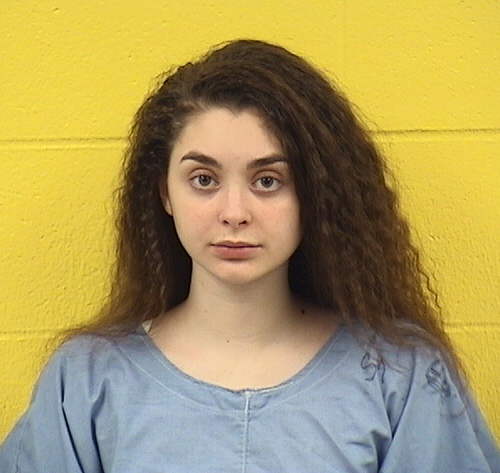
The infamous Mackenzie Shirilla appears in this mugshot. (Photo Credit: Ohio Department of Rehabilitation and Correction)
A new trial?
On Tuesday, July 28, Shirilla’s news attorneys filed a writ of habeas corpus in federal court, Us Weekly reports.
The federal petition is based around the belief that key exculpatory evidence was wrongfully excluded during her original trial.
This new legal challenge also asserts that there was insufficient evidence leading to Shirilla’s conviction.
In both cases (and beyond), her new legal team says that she had ineffective counsel at trial.
As far as the excluded evidence goes, there’s an explanation for Shirilla driving where she was on the night of July 31, 2022 — one that doesn’t include her alleged intention to murder boyfriend Dominic Russo and friend Davion Flanagan.
“The prosecution theorized that the location was intended to be private in order for Shirilla to crash the vehicle without immediate attention,” her new legal team argues.
“But the defense had evidence that a local grocer had left a package of produce for Shirilla at a 24-hour pickup spot,” their filing notes.
This pickup spot was “at a store located in the vicinity of the crash scene.”
Shirilla’s attorneys wrote: “This would have provided a benign explanation for why Shirilla was driving in this particular area that morning.”
They note that this was “evidence not presented by the defendant even though the grocer testified about other matters.”
Should a minor’s case be tried in adult court?
Additionally, Shirilla’s new legal team argue that her rights were violated on a more broad level during the trial.
Specifically, she was a minor at the time of the tragic deaths of her two companions.
Her trial, they argue, was improperly transferred from juvenile court to adult court. Improper because she was still a minor and belonged in juvenile court.
If the prosecution’s theory was that an emotional teenager tried to kill herself and her companions by driving at high speed into a wall, would that not belong in a different legal venue than it would if, say, a 30-year-old had done the same?
That is, essentially, her attorneys’ argument. And, whatever we may think of Shirilla and her culpability, that seems sound.
The bit about the potentially exculpatory evidence does seem like something that a courtroom should hear.
Imagine yourself as a juror (Shirilla had a bench trial, but bear with us) and you vote to convict someone who seemingly had no possible reason for being in an area except to commit a crime.
If you later learned that they were on their way to the grocery store, but were not permitted to explain this in court, you might think that it could have influenced your verdict.
That said, we have not seen this alleged evidence. We don’t know if Shirilla was actually on her way to pick up a parcel.
Two young men died in a horrific crash that could have claimed Shirilla’s life, too. It seems likely that she has at least some culpability. Whether it’s worth two concurrent sentences of 15 years … that may be up to a new trial to determine. Or not, as the case may be.
Open source fosters creativity but involves complex issues like licensing and ownership, especially in hackathons. Proper planning with appropriate licenses upfront is crucial for project success and flexibility.










 Dig into the Dev Note:


 Cardi B likes her body like that.